Glow Spinner: Finger Draw Art
Hypernova LimitedArt & Design
4.720.00 Reviews
- Version
- 1.1.0
- Installs
- 1.00M
- Age Rating
- Everyone
Screenshots
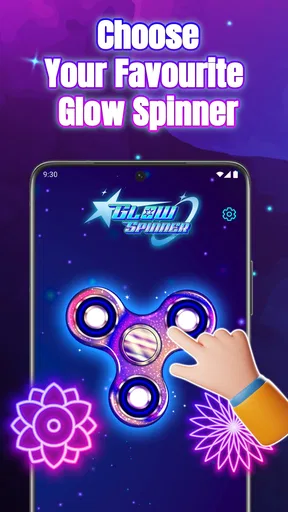
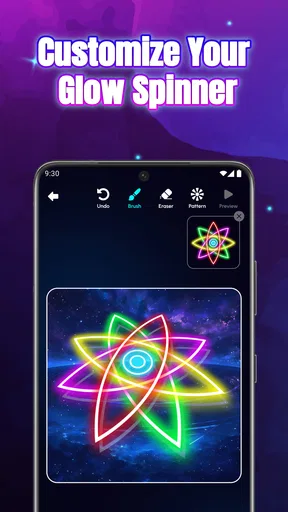
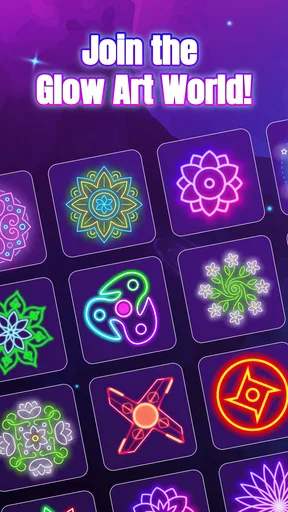
Our Review of Glow Spinner: Finger Draw Art
 Analysis by Appyee
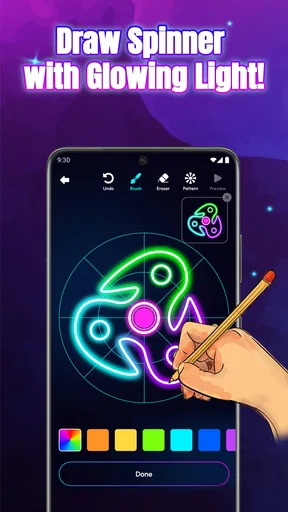
Glow Spinner: Finger Draw Art is the kind of small creative app I reach for when I want to make something visual without turning the moment into a serious drawing session. It sits in the art and design category, but I would describe the experience more simply: you draw with your finger, watch the lines glow and rotate, and use the result as a short, calming break. That focus makes it easy to understand, although it also means this is not a substitute for a full illustration studio.
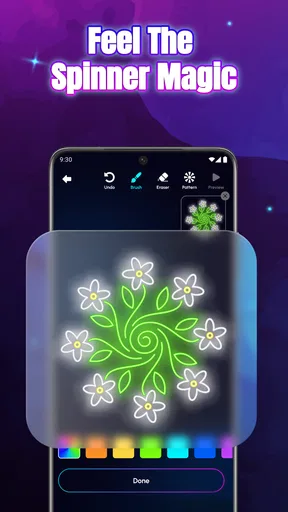
After spending time with it, my impression is that the appeal comes from the movement as much as the drawing. A basic gesture can become a bright, symmetrical-looking pattern, so you get a sense of making something polished without needing drawing skills. The app is free, aimed at Everyone, and comes from Hypernova Limited. It has reached over a million installs and holds a 4.7 average from around ten thousand ratings, which suggests that the straightforward idea has found a sizeable audience.
What the glowing spinner experience is really like
The first thing I noticed is how quickly the app communicates its purpose. There is no intimidating canvas full of professional tools to learn before creating anything. The central activity is finger drawing, with the spinner effect turning a simple mark into a more decorative visual. That makes the app approachable for children, casual users, and anyone who prefers playful experimentation over precise digital painting.
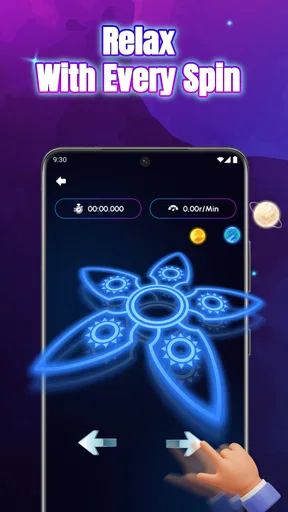
I found the rotating result more relaxing than I expected. Drawing a curve and seeing it echo through the composition gives the process a gentle rhythm. It is not a game built around winning, collecting, or completing difficult objectives. Instead, the reward is visual: I make a mark, observe how the design changes, and decide whether the next movement improves it or takes it in a completely different direction.
That distinction matters when deciding whether to install it. If you want layers, brushes, typography, masking, detailed color correction, or export-focused design work, a conventional drawing app will serve you better. Glow Spinner is better understood as a finger-drawing relaxation tool with an artful visual response. Its narrow purpose is also its strength because the screen does not ask me to manage a professional workflow.
Why the spinner format changes ordinary doodling
In a normal sketching app, an uneven line stays uneven unless I manually correct it. Here, the spinner treatment makes experimentation feel less risky. I can draw a loose arc, a zigzag, or a repeated loop and still end up with something that looks intentional once the visual effect takes over. This is useful for people who often avoid drawing because they believe every line must be accurate.
One practical way I used it was as a short reset between tasks. Rather than opening a social feed and getting pulled into unrelated content, I could spend a few minutes making patterns. The activity is simple enough to start immediately, but it still gives my hands something to do. I would not call it a replacement for meditation, but it can create a similar pause when the mind needs a low-pressure change of focus.
There is also a nice difference between drawing for an outcome and drawing for motion. I did not need to plan a character, landscape, or finished poster. I could begin with one stroke and let the spinner effect guide the next decision. That makes it particularly suitable for creative warm-ups, visual play, or introducing a child to the idea that digital art can be exploratory rather than perfectionist.
A realistic everyday use case
Imagine having a short wait before an appointment or a few quiet minutes after work. You open the app, draw several curved lines, and watch the design develop while you decide whether to keep refining it. There is no need to prepare a project or remember a complicated tool layout. When the pattern stops feeling interesting, you can simply move on with your day.
For me, the best results came from using broad, slow gestures first and then adding smaller movements. Starting too quickly can produce a busy image before I understand how the spinner reacts. A slower opening stroke gives the composition a clearer base, while later marks can add energy. This is one of the app’s less obvious lessons: the quality of the result depends less on drawing talent than on controlling the pace of the gesture.
Another useful approach is to treat the first attempt as a draft rather than trying to create a perfect image immediately. I found that the most interesting patterns often appeared after an accidental line changed the balance of the design. If I erased or abandoned every imperfect start mentally, I missed the enjoyable part of discovering what the motion could do.
Who will enjoy it most
I would recommend it to casual creators, families looking for a simple visual activity, and people who enjoy relaxing through repetitive hand movements. It can also work for anyone who wants a quick way to generate decorative ideas without opening a complex creative suite. Because the basic concept is easy to grasp, it does not demand a long tutorial or previous experience with digital art.
It may also appeal to users who like watching patterns evolve. The spinner effect creates a small element of surprise, since the final appearance depends on the relationship between the gesture and the rotation. That makes repeated sessions feel different enough to encourage experimentation, even though the underlying activity remains focused.
I would skip it if your goal is serious illustration, photo editing, logo construction, or a carefully controlled design project. The app’s charm comes from guided spontaneity, so users who need exact placement and predictable editing may find it restrictive. It is also not the right choice if you expect a large social platform, a lesson-based art course, or a feature-heavy professional workspace.
How it compares with ordinary drawing apps
Compared with a standard sketchbook app, this experience asks less of me technically but gives me less control. A traditional canvas is more flexible: I can usually choose a brush, work on separate layers, correct individual details, and build a finished illustration. Glow Spinner instead makes the transformation itself the main attraction. I trade precision for speed and visual surprise.
Compared with coloring apps, it feels more active. Coloring usually gives me an outlined image and asks me to fill spaces, while this app lets me create the marks from the beginning. Compared with generative art tools, it also feels more personal because the starting input comes directly from my finger rather than from a written prompt. The result may be less elaborate, but the process is easier to understand and more connected to the movement of my hand.
That trade-off helps explain why I would keep this alongside, rather than instead of, a full drawing application. I might use a professional tool when I have a clear project and this one when I want to make something quickly. The two purposes do not overlap completely. One is for construction and revision; the other is for playful visual feedback.
Small techniques that make sessions more rewarding
My first tip is to vary pressure and speed only if your device responds naturally to those gestures. The important part is not forcing a complicated technique, but noticing how a slow curve differs from a quick flick. Repeating the same movement several times can also reveal whether the pattern is becoming balanced or overly crowded.
My second tip is to leave empty space. Because glowing lines can become visually attractive very quickly, it is tempting to fill every area. I often preferred designs that stopped earlier, leaving the central form or outer edge room to breathe. This is a useful trade-off: more marks can create excitement, but fewer marks can make the result easier to read.
My third tip is to use the app as a visual brainstorming step rather than insisting that every creation be a finished artwork. A spinner pattern can suggest a background, a decorative border, or a color relationship that I later recreate elsewhere. Even without treating the result as a formal asset, the quick feedback can help break a creative block.
I would also suggest giving the app a clear time boundary if you tend to lose track of short relaxing activities. Since there is no demanding objective pushing me to stop, it is easy to continue making “one more” pattern. That is pleasant when I have free time, but less useful when I opened it during a brief break.
Trust, controls, and moments that deserve attention
Glow Spinner is free and carries an Everyone content rating, which makes it easy to consider for a broad household audience. The current version is 1.1.0 and requires Android 7.0 or later. Those details matter in practical terms: before installing, I would check the operating system on an older phone, especially if the device is shared with a child or kept as a secondary handset.
When I assess a simple creative app, I pay attention to what it asks me to do before I can start. I prefer experiences that let me understand the basic activity without forcing me into an account-based routine or a complicated setup. With this type of app, the most sensible habit is to review the permission prompts and any visible choices during installation and first launch rather than accepting every request automatically.
I also treat drawings as personal content, even when they are only abstract patterns. If the app presents any option to save, share, or move a creation outside the app, I would check the destination carefully before confirming. A private doodle, a child’s drawing, or a design made during a confidential work break should not be shared accidentally just because a button is convenient.
The same caution applies to device storage and account controls. Before relying on a creation, I would make sure I understand whether it is saved locally, whether removing the app could affect it, and whether any visible sign-in choice is genuinely necessary for the way I plan to use the tool. These are not reasons to avoid it; they are sensible checks whenever an app handles images or creative output.
The best trust habit here is simple: keep control of every permission, saved image, and sharing action instead of treating the glowing effect as a reason to rush through setup. That approach is especially important when a family member uses the device, because an attractive, easy-to-use art app can encourage quick taps from someone who is not thinking about privacy or storage.
Where the experience can feel limited
The same simplicity that makes the app welcoming can eventually make it feel narrow. Once I had explored the basic relationship between finger movement and spinning patterns, I wanted more ways to shape the result. Users who enjoy building a personal library of techniques may outgrow the experience sooner than users who mainly want short creative breaks.
There is also a difference between relaxing repetition and meaningful progression. Some people will appreciate that the app does not turn creativity into a checklist. Others may want challenges, themed projects, unlockable tools, or a stronger reason to return. If you need structured instruction or measurable improvement, a drawing course or a more traditional art app will provide clearer direction.
Another limitation is that abstract results are not always useful for a specific project. A spontaneous pattern can look attractive but still fail to fit a poster, presentation, or illustration. I would avoid promising myself a finished design before starting. The better expectation is to enjoy the process first and decide afterward whether the result has a practical use.
Because the app is designed around a visual effect, the experience may also be less satisfying on a small or older screen than on a comfortable display. I would not assume that the same gesture feels equally natural on every device. If the drawing area feels cramped, the app’s central pleasure can become fiddly rather than calming.
My recommendation for different kinds of users
For a child, I would present it as a supervised creative toy rather than a complete art education tool. The finger-based interaction is approachable, and the Everyone rating supports its broad audience positioning, but adults should still review setup choices and sharing behavior on a shared device.
For a stressed adult, I think it works best as a deliberate alternative to passive scrolling. Set aside a short window, make a few patterns, and stop when the activity has done its job. The app is most effective when I do not demand a masterpiece from it.
For an aspiring illustrator, I would recommend it as a warm-up only. It can loosen the hand and encourage visual experimentation, but it will not replace the control offered by a full drawing workspace. If your priority is learning anatomy, perspective, lettering, or detailed rendering, choose a tool designed around those skills.
For someone choosing apps primarily through popularity, the audience response is encouraging: the app has more than a million installs and a 4.7 average rating from roughly ten thousand ratings. I would still treat those figures as a starting point rather than proof that it matches your needs. The key question is whether you want fast, glowing pattern-making or a broader art tool.
Final verdict on Glow Spinner: Finger Draw Art
My overall view is positive, with a clear condition attached. Glow Spinner: Finger Draw Art succeeds because it turns an ordinary finger gesture into an immediate visual event. I like that I can begin without studying a professional interface, and I appreciate the way the rotating treatment makes imperfect lines feel worth exploring.
It is free, accessible on Android 7.0 and later, and developed by Hypernova Limited. The release date of Nov 25, 2025 places it among newer options in this small creative space, while version 1.1.0 gives users a clear current version to look for when checking compatibility. More importantly, the app knows what it wants to be: a compact art-and-relaxation experience rather than an all-purpose studio.
I would install it for quick creative pauses, casual pattern experiments, and a low-pressure way to involve a child in digital drawing. I would not install it expecting advanced editing, structured lessons, or dependable production assets. Keep an eye on permissions, saving, and sharing choices, and approach each session as exploration rather than a test of artistic ability.
That is where I think it earns a recommendation. If you want a simple, tactile way to make luminous-looking patterns and unwind, this app is worth trying; if you need precision, progression, or professional control, a conventional drawing app is the better choice.
Verdict
Strengths of Glow Spinner: Finger Draw Art
- Simple finger-drawing controls are easy for beginners to pick up.
- Bright glow effects make finished designs visually appealing.
- Relaxing, casual gameplay works well for short creative sessions.
- Offers a low-pressure way to experiment with colors and patterns.
- Artwork can provide satisfying results without advanced artistic skills.
Limitations of Glow Spinner: Finger Draw Art
- Limited drawing depth may reduce appeal for experienced artists.
- Glow effects can make fine details difficult to see while drawing.
- Some features or designs may require in-app purchases.
- Repetitive mechanics could become less engaging over time.
- Performance may vary on older phones with complex animations.
Other Releases by Hypernova Limited
View All
Smiley Fun Live Wallpaper
Personalization4.3

AR Drawing - Trace & Paint
Art & Design4.8
Similar Picks in This Category
View All
Canva: AI Photo & Video Editor
Canva4.8

PENUP – Drawing-sharing SNS
Samsung Electronics Co., Ltd.4.5

Crafto
Kutumb App4.6

Sketchbook
Sketchbook4.1

ibis Paint X
ibis inc.4.5

Adobe Express: AI Photo, Video
Adobe4.6
Frequently Asked Questions
What is Glow Spinner: Finger Draw Art?
Glow Spinner: Finger Draw Art is a casual creative app that lets you produce colorful, glowing patterns by moving your finger across the screen. It combines simple touch controls with spinning, neon-style visual effects, making it suitable for relaxing doodling, experimenting with symmetry, or creating attractive abstract artwork without requiring any drawing experience.
How do you create artwork in Glow Spinner: Finger Draw Art?
After opening the app, you generally draw by dragging your finger around the display while the spinner effect duplicates, rotates, or mirrors your movements into luminous patterns. Users can experiment with different directions, speeds, and shapes to create unique designs. The experience is intentionally simple, so there is no need to learn complicated brushes or professional editing tools.
Is Glow Spinner: Finger Draw Art suitable for children?
The app is generally easy for children to understand because its main interaction is based on finger movement and visual experimentation. However, parents should review the current store listing for advertising, in-app purchase, privacy, and data-collection information before allowing unsupervised use. Younger children may also need help navigating menus or avoiding accidental taps on promotional content.
Does Glow Spinner: Finger Draw Art work offline?
The drawing experience may be available without a continuous internet connection, which makes the app convenient for short creative sessions while traveling or when Wi-Fi is unavailable. Nevertheless, certain features such as advertisements, store content, analytics, or sharing options may require connectivity. It is best to launch the app once online and check which functions remain accessible offline on your device.
Can artwork created in Glow Spinner: Finger Draw Art be saved or shared?
Depending on the version installed and the operating system, the app may offer options to capture, save, or share finished patterns through the device’s standard sharing tools. Availability can differ between Android and iOS releases, so users should check the in-app menus and the latest store description. If saving is important, test the export process before spending time on a detailed design.
